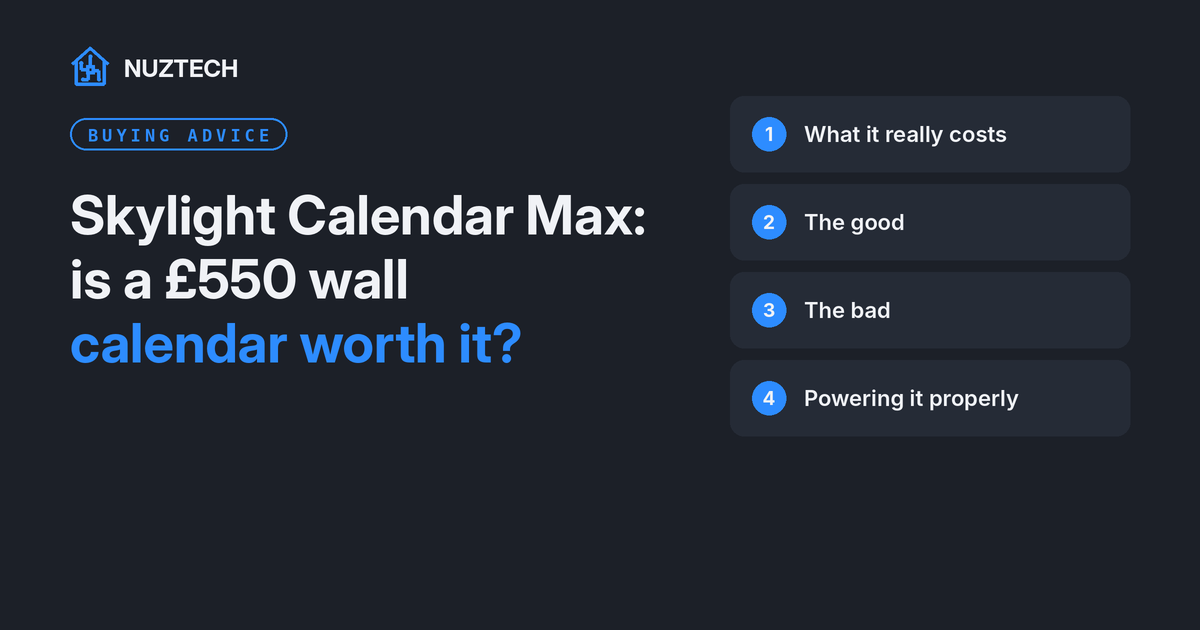
Skylight Calendar Max First Look: Is a £550 Wall Calendar Worth It? A Sparky’s Honest Take
Running a family diary is a full-time job nobody applied for. School runs, dentist appointments, football training, swimming lessons and the nightly “what’s for dinner?” – and somehow the whole lot ends up living in one person’s head.
The Skylight Calendar Max claims it can fix that. It’s a 27-inch touchscreen calendar that hangs on your wall, pulls in everyone’s digital calendars and puts them in one place the whole house can see.
Sounds brilliant. But at £550 plus a subscription, is it a genuine family lifesaver or just a very expensive picture frame? I’ve had a proper look at what you get, what it really costs, and – because I wire houses for a living – what it takes to get one on your wall without making a mess of it.
I haven’t had one on my own wall yet. This is based on Skylight’s specs, UK pricing and what owners are saying.
What is the Skylight Calendar Max?
It’s a big, wall-mounted smart display built to do one job: keep a busy household organised. Unlike an Amazon Echo Show or an iPad, there’s no web browser, no social media, no YouTube and no constant pinging. Just the family plan, front and centre.
- 27-inch touchscreen – big enough to read from the other side of the kitchen.
- Calendar syncing – works with Google, Apple (iCloud), Outlook, Cozi and Yahoo calendars.
- Chores and to-do lists – colour-coded lists and tick-off checklists for the kids.
- Phone app – add events and tasks from anywhere and they appear on the wall.
- Portrait or landscape – mount it whichever way suits your wall.
What it actually costs
Let’s deal with the elephant in the room first.
The screen
- Skylight Calendar Max (27-inch): £550
- Skylight Calendar (15-inch): £290, for comparison (or £275 if you buy it bundled with a Plus subscription)
The subscription (Skylight Plus)
The good news: calendar syncing, colour coding and chore lists are free. The not-so-good news: a lot of the clever stuff sits behind Skylight Plus, which costs £60 a year (about £5 a month). There’s a one-month free trial, so you can see if the extras are worth it before you pay a penny.
Here’s what that subscription gets you:
- AI importing – forward an email or a PDF of the school newsletter and it turns the dates into calendar events. (Skylight now calls its AI helper “Sidekick”.)
- Photo screensaver – turns the screen into a giant photo frame when nobody’s using it.
- Meal planning – plan the week’s dinners, save recipes and build shopping lists.
- Rewards – star charts that turn chores into a game for the kids.
Keep it for three years with Plus and you’re looking at roughly £730 all in. Prices do move about, so check the current figures before you buy.

The good
1. You can see it from across the room
This is the big reason to pick the Max over the 15-inch model. It’s a proper command centre. Anyone can glance up from the kettle and see who needs to be where, and that cuts out a lot of “Mum, what time’s my match?”
2. No distractions
No browser, no games, no social media. The kids can’t hijack it to watch videos, so it stays what it’s meant to be: a calendar on the wall.
3. It pulls everyone’s calendars together
One parent on Google Calendar for work, the other on Apple, the kids on Cozi? Skylight merges the lot into one colour-coded view without any fuss. This is where it really earns its keep.
4. Kids seem to actually use the chore charts
By most accounts, surprisingly well. Kids like physically ticking off their morning and bedtime routines on the big screen. It builds a bit of independence and takes some of the shouting out of the school-day morning.
The bad
1. That price
£550 up front, plus £60 a year for the full experience, is a lot of money for something that is, at heart, a calendar. You could buy a decent smart TV or an iPad for less.
2. Features locked behind a subscription
This is the bit that gets my goat. You spend over £500 on a screen, then find out you need to pay every year just to show your own family photos on it when it’s idle. That’s not a premium extra – that’s something the hardware should do out of the box.
3. It needs a plug, all the time
There’s no battery, so it has to stay plugged in. Put it in the middle of the kitchen wall and you’ll either have a white lead trailing down to the nearest socket or you’ll need a socket fitted behind it. More on that below, because this is my bread and butter.
4. No voice assistant or smart home control
Unlike an Echo Show 15, there’s no Alexa, Siri or Google Assistant built in. You can’t shout “add milk to the shopping list” while your hands are covered in mince. Everything gets tapped in on the screen or added through the phone app, and it won’t control your lights or heating either.
5. The software can feel a bit slow
The touchscreen can feel sluggish next to a modern phone, and for anything beyond the basics – deeper settings, managing lists properly – you’ll find yourself reaching for the app instead.
Sparky’s corner: powering it properly
A 27-inch screen with a lead dangling down the middle of your kitchen wall looks rotten, and it’s something for small hands to grab. Here’s how I’d do it:
- Fit a socket behind the screen. It’s the tidy job. A recessed socket lets the plug sit back into the wall, so the screen hangs flatter and the lead disappears completely.
- Don’t use an extension lead as a permanent fix. Running one up the wall and hiding it behind the screen is asking for trouble.
- Check before you drill. Cables are meant to run straight up, down or across from sockets and switches, and close to ceilings and corners. Never drill directly in line with a socket or switch, and run a cable and pipe detector over the wall first. Older houses don’t always follow the rules, so don’t assume.
- Use the right fixings. It’s a big screen. If your wall is plasterboard, use proper cavity fixings – not the little plastic plugs from the junk drawer.
- Get a qualified electrician for the socket. A new socket needs RCD protection, and plenty of older fuse boards don’t have it. Use a registered electrician (SELECT in Scotland, NICEIC or NAPIT elsewhere in the UK) and ask for a certificate for the work. Whether the new socket also needs notifying under building regulations depends on the room and where you live. I’ve covered that in Do I need Part P to add extra sockets? on Flowloch, my own site.

The verdict: good or bad?
The Skylight Calendar Max is a good product with a bad pricing model.
Buy it if you’ve got a busy household juggling lots of schedules and the budget isn’t tight. It works really well. It gets everyone taking responsibility for their own plans, clears a lot of mental clutter and keeps the family in sync far better than a paper calendar on the fridge ever will.
Skip it if you’re watching the pennies, or you want one screen that does everything – voice control, smart home, streaming. It’s not that.

Cheaper alternatives
- Skylight Calendar 15-inch (£290, or £275 bundled with Plus) – nearly all the same software for about half the price. You just lose the size.
- Amazon Echo Show 15 – cheaper, and you get voice control, widgets, smart home controls and streaming apps thrown in.
- A DIY tablet setup – mount a standard tablet on the wall running Google Calendar and you’ve got much of the same job done for a fraction of the cost. It’ll still need power, though, so everything in Sparky’s corner applies.
If you do go for it, sort out your wall space and your power before the box arrives. Your future self – and your kitchen wall – will thank you.
Prices checked on 3 November 2026.